


HY300 PRO Projector with Android 11, 4K Support 1080P Full HD, 160 ANSI Smart Projector, Wifi 6 & Bluetooth 5.4, 210° Rotation, Auto Keystone & Motorized Focus, Portable Projector for Outdoor/Home
HY300 PRO Projector with Android 11, 4K Support 1080P Full HD, 160 ANSI Smart Projector, Wifi 6 & Bluetooth 5.4, 210° Rotation, Auto Keystone & Motorized Focus, Portable Projector for Outdoor/Home
Couldn't load pickup availability
Product description
-
How to Connect to an iOS/Android Device?
To connect an iOS or Android device, you can use the Screencast feature. Ensure both your mobile device and the projector are connected to the same Wi-Fi network during screen mirroring.
-
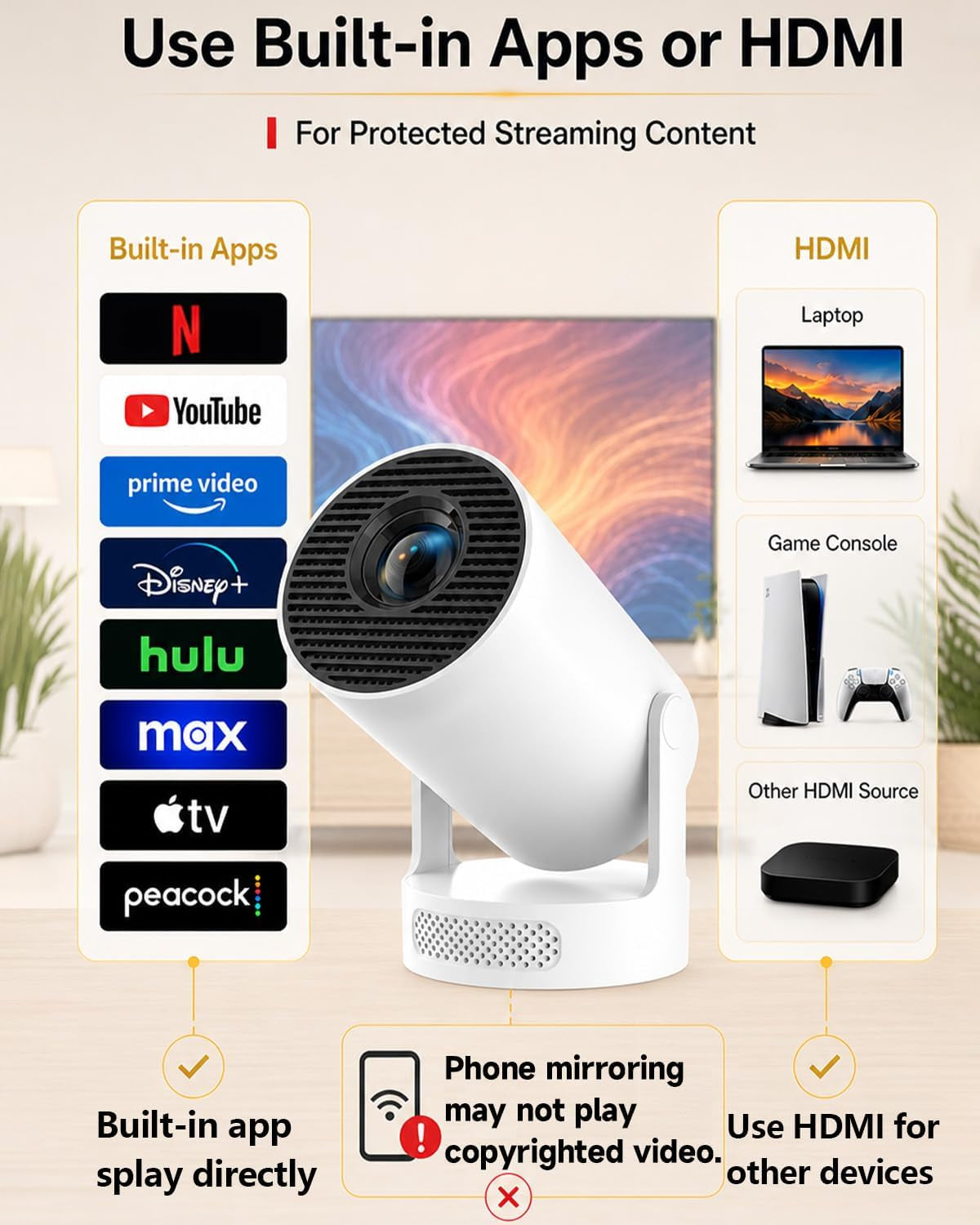
How to Watch Videos from Amazon Prime, YouTube, etc?
1. Update Your System: Ensure your device has the latest software update.
2. Download Apps: Install the respective apps from the official App Store.
3. Use a TV stick for wireless streaming (note: TV sticks are not included).
-
The remote control becomes unresponsive when using certain applications.
1. Locate and press the mouse button on your remote control.
2. Switch to mouse mode to navigate these applications properly.
-
What should I do if the apps don't work after connecting to Wi-Fi during the initial setup?
Please perform a quick system restart. The projector requires a one-time reboot to fully activate and initialize all applications upon its first use. Once restarted, everything will function perfectly.
-
What should I do if the screen mirroring function of my projector isn’t working?
Our projectorssupport screen miroring, but some apps dont This due to third -party softwares security-blocking tto prevent piray orscreen recording The issue isn't with the projector and won't affect its use.
Quick Start Video Guide
-
Connecting to Wi-Fi
1. Go to top-right **Wi-Fi Settings** on Home Screen and turn it **ON**.
2. Select your home network and enter the password to connect.
3. The Wi-Fi icon will turn **green** upon successful connection.
**Note:** If missing, refresh list. Keep projector close to the router and avoid thick walls to maintain a strong signal.
The video showcases the product in use.The video guides you through product setup.The video compares multiple products.The video shows the product being unpacked.Connecting to Wi-Fi
-
Mobile Screen Mirroring
1. Connect projector and phone to the same non-guest Wi-Fi.
2. Select **Screen Cast** on Home Screen, then choose **iOS** or **Android**.
3. Open phone's Control Center, tap **Screen Mirroring** & select device.
**Note:** Some apps (Netflix, etc.) block casting due to DRM policies. This is a standard software restriction, not a projector defect.
The video showcases the product in use.The video guides you through product setup.The video compares multiple products.The video shows the product being unpacked.Mobile Screen Mirroring
-
Connecting a Laptop
1. Turn on laptop and connect HDMI cable (use a hub if no HDMI port).
2. Turn on projector and plug the other end of HDMI cable into it.
3. Select **HDMI** on Home Screen; screen mirrors in 3-5 seconds.
**Note:** If connection fails, check if the HDMI cable or hub is faulty.
The video showcases the product in use.The video guides you through product setup.The video compares multiple products.The video shows the product being unpacked.Connecting a Laptop
-
Accessing YouTube Correctly
1. Connect projector to Wi-Fi (ensure YouTube works in your region).
2. Go to **Settings > Date & Time**, enable **Automatic Acquisition**.
3. Open YouTube app and always update it to the latest version.
**Note:** You must log into your Google account to play videos smoothly.
The video showcases the product in use.The video guides you through product setup.The video compares multiple products.The video shows the product being unpacked.Accessing YouTube Correctly
-
Remote Unresponsiveness Fix (Mouse Mode)
1. If remote arrows become unresponsive in an app, activate **Mouse Mode**.
2. Use remote's arrow keys to move the on-screen cursor and **OK** to select.
3. Press the **Mouse Button** again to exit and return to normal mode.
The video showcases the product in use.The video guides you through product setup.The video compares multiple products.The video shows the product being unpacked.Remote Unresponsiveness Fix (Mouse Mode)
- 【Upgraded Series - Smart Android TV 11.0】Experience the latest HY300 ULTRA, featuring an upgraded Android TV 11.0 system with an expanded ecosystem. Access 500,000+ movies and shows via Netflix, Prime Video, and YouTube directly. Powered by a high-performance Mali-G31 GPU, it delivers a smooth, lag-free streaming experience without needing extra TV sticks.
- 【Pro Visuals: 160 ANSI & 4K Support】Boasting 160 ANSI Lumens brightness (50% brighter than previous models) and HDR10+ dynamic decoding, this projector offers vibrant colors and deeper blacks. It supports 4K input with 1080P physical resolution and 2000:1 contrast ratio. Equipped with MEMC motion compensation to eliminate blur, ensuring a cinematic experience for sports and action movies.
- 【Motorized Focus & 210° Flexible Rotation】Break the limits of space! The HY300 ULTRA features a new Motorized Focus for crystal-clear images in seconds. The 210° rotatable stand allows you to project on walls, ceilings, or even the floor. With a 1.1:1 short-throw ratio, you can enjoy a 100-inch giant screen from just 2 meters away, saving 30% more space.
- 【Dual Intelligent Correction & HiFi 5W Audio】Equipped with 6-way Auto Keystone Correction and TOF Laser Focus, achieving a perfectly aligned screen in just 0.8s. The upgraded 5W Soundbase speaker with a built-in DSP processor creates a 360° surround sound field. New "Night Cinema Mode" intelligently balances sound pressure for immersive late-night viewing without disturbing others.
- 【Next-Gen Connectivity & Ultra-Quiet Cooling】Stay ahead with WiFi 6 for ultra-fast mirroring and Bluetooth 5.4 for stable speaker connections. The innovative dual-turbo air duct system reduces operating noise to a whisper-quiet 22dB. Versatile interfaces including HDMI 2.1, USB 3.0, and NAS LAN direct connection make it compatible with laptops, PS5, and external drives.


Customer Reviews
Collapsible content
What products does Lumina Home offer?
What products does Lumina Home offer?
Lumina Home offers a carefully selected collection of beauty gadgets, home & kitchen essentials, and pet accessories designed to make everyday life easier, more convenient, and enjoyable.
Do you provide order tracking?
Do you provide order tracking?
Yes! As soon as your order is dispatched, we'll send you a tracking number via email so you can monitor your shipment every step of the way.
Can I cancel or modify my order?
Can I cancel or modify my order?
If your order hasn't been processed or shipped, we'll do our best to accommodate changes or cancellations. Please contact our support team as soon as possible.
How can I contact customer support?
How can I contact customer support?
You can reach our customer support team through our Contact Us page or by emailing us. We aim to respond to all inquiries within 24–48 business hours.
What should I do if I receive a damaged or incorrect item?
What should I do if I receive a damaged or incorrect item?
We're sorry for the inconvenience. Please contact us within 48 hours of delivery with your order number and clear photos of the item, and we'll work quickly to resolve the issue.